
Tape Tool
Tape Tool
Tape helps you memorize. Cover answers, key terms, or formulas with tape, test yourself, then tap the tape to check. It works like the removable tape you’d stick over a textbook, but you can use it again and again.
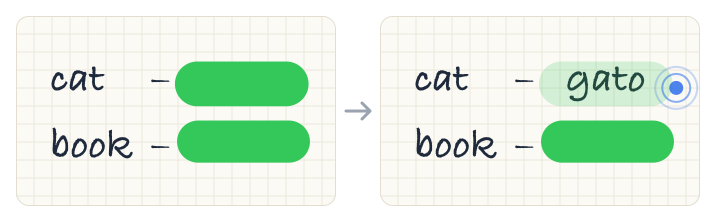
Here are a few ways to use tape:
- Flashcards: Write a question and its answer, then tape over the answer.
- Vocabulary: Tape over the translations in a word list.
- Diagrams: Tape over labels on a diagram, then name each part from memory.
- PDFs: Tape over key points in a textbook or worksheet you’ve imported.
Add Tape
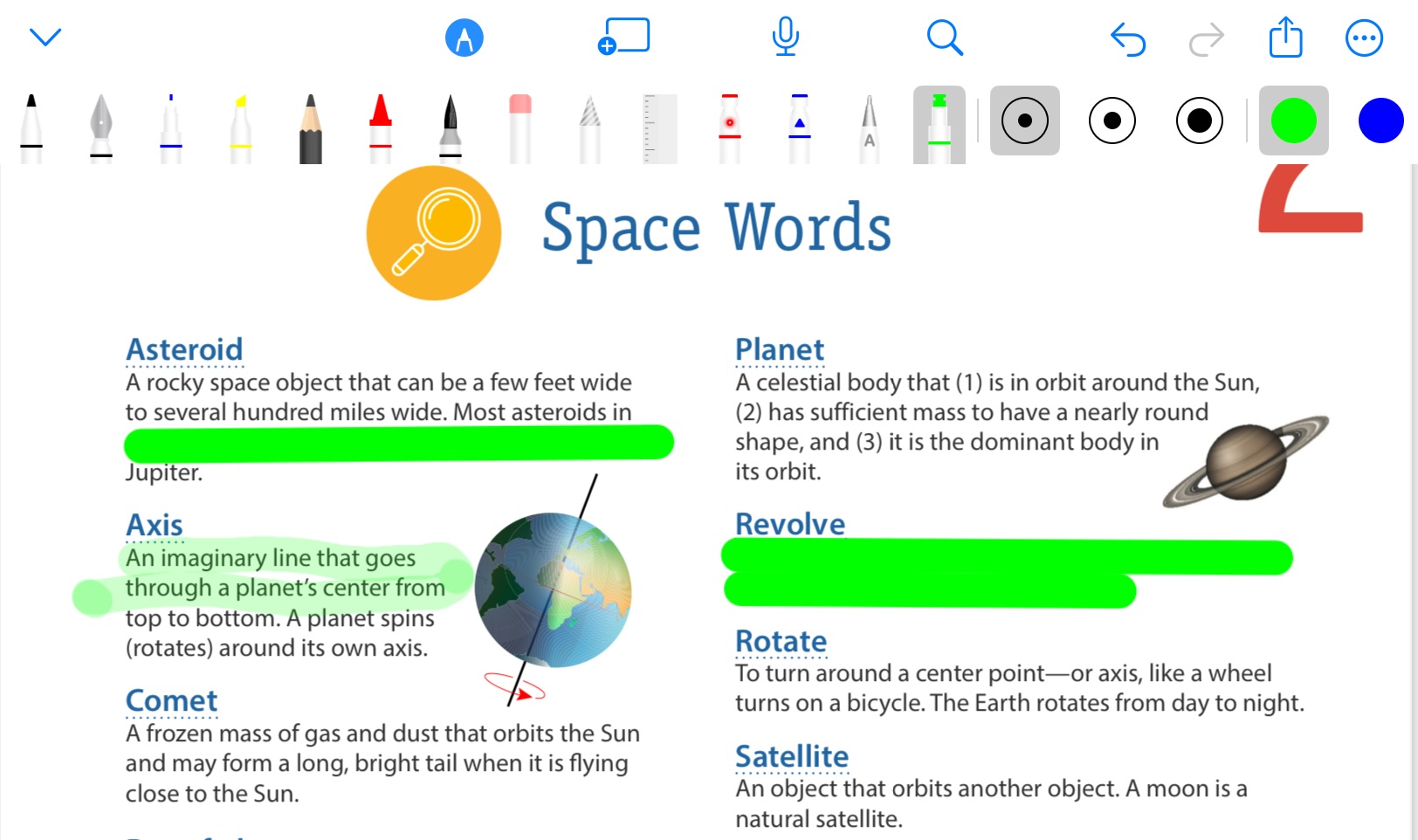
- Tap Tape in the toolbar.
- Draw over the content you want to hide. The tape covers it completely.
On iPad, draw tape with Apple Pencil. On iPhone, draw it with your finger.
To change the tape’s thickness or color, choose one of the thickness buttons or color swatches in the toolbar, next to the tools. Thicker tape is useful for covering more than one line at a time.
Draw Straight Tape
To make a straight piece of tape, draw a line and hold your pen still at the end for a moment. The tape snaps into a straight line.
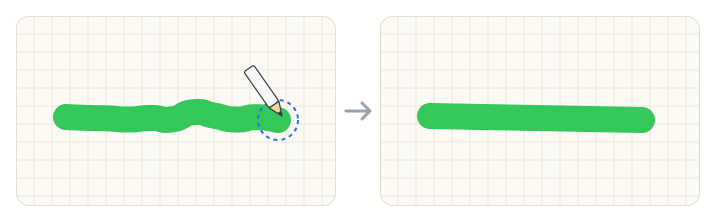
You can also have tape straighten automatically. Turn on Draw in Straight Line in the Tape settings. When you lift your pen after drawing a roughly straight line, the tape becomes perfectly straight.
Reveal and Hide
With the Tape tool selected, tap a piece of tape. It turns see-through so you can read the content underneath. Tap it again to cover the content.
You can tap tape with your finger or Apple Pencil. Each piece of tape remembers whether it is covering or see-through, even after you close the note.
Remove Tape
- One piece. Select the eraser and swipe over the tape. The whole piece is removed. Tap Undo to bring it back.
- All tape on a page. In the Tape settings, tap Remove All Tape in This Page. This removes tape from every layer on the page, including hidden layers, and can’t be undone.
Tape and Layers
Tape is added to the current layer, like handwriting and other content. Tape on a hidden layer is hidden too, and can’t be tapped. This lets you keep a set of tape on its own layer and hide all of it at once. See Layers.
Tape Settings
With the Tape tool selected, tap Tape in the toolbar again to open its settings.
- Show on Toolbar. Turn off to remove the Tape tool from the toolbar. To get it back, turn it on again in the app’s Stylus settings.
- Draw in Straight Line. Turn on to straighten tape automatically when you draw a roughly straight line.
- Remove All Tape in This Page. Removes every piece of tape on the current page, on all layers. This can’t be undone.