Scribble to Text
Scribble to Text
The Scribble tool turns your handwriting into typed text as you write. Write anywhere on the page with Apple Pencil, and UltraNotes places the text in a text box for you. It’s a quick way to add neat, searchable text without a keyboard.
The Scribble tool is available on iPad with Apple Pencil. It uses Scribble, the handwriting recognition built into iPadOS.
Scribble is different from Scribble to Erase, which erases handwriting when you scribble over it with a pen.
Before You Start
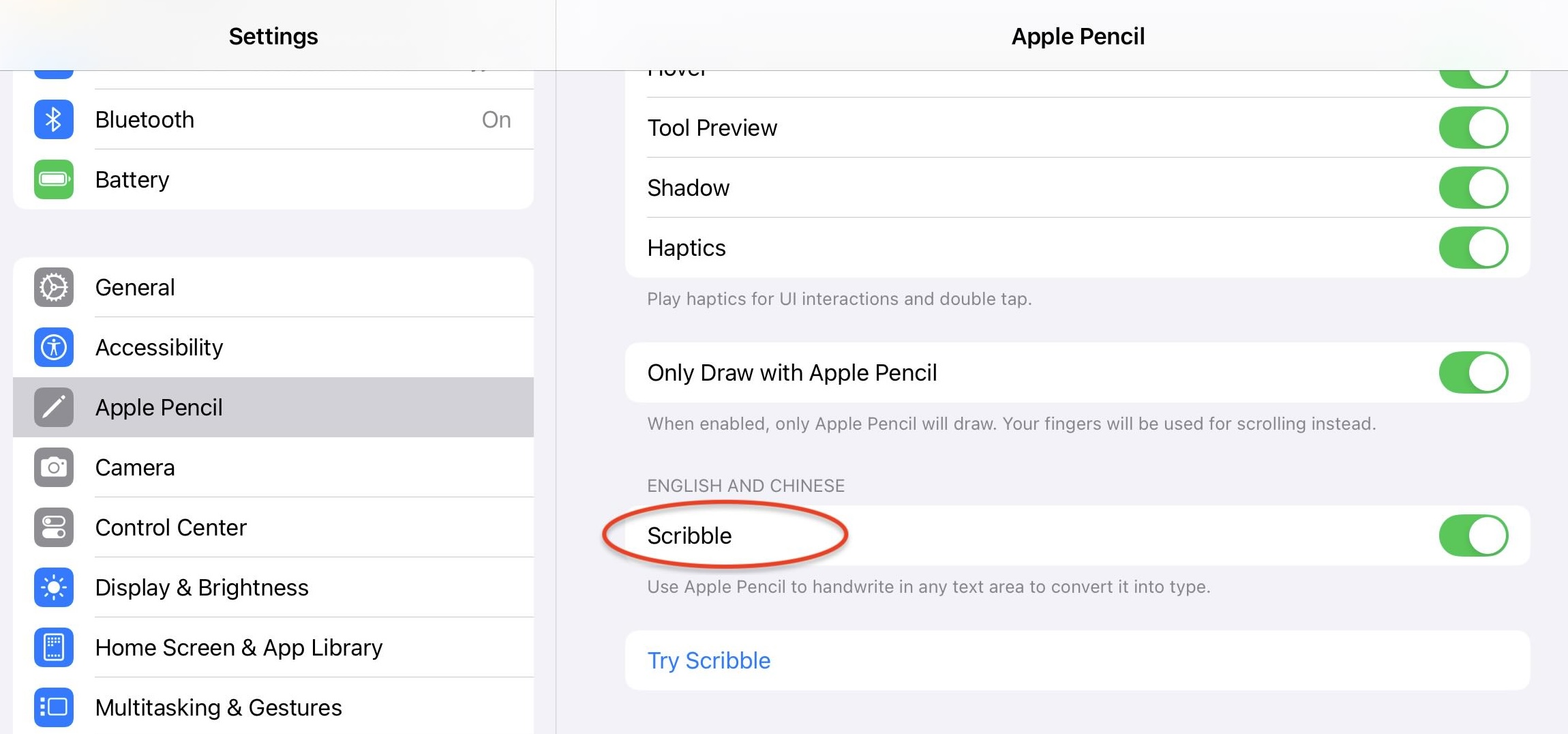
Make sure Scribble is turned on in iPadOS: open the Settings app, tap Apple Pencil, and turn on Scribble.
Scribble recognizes the languages that iPadOS supports for Scribble. To change the language, add a keyboard for that language in the Settings app.
Write Text
- Tap Scribble in the toolbar.
- With Apple Pencil, write on a blank area of the page.
- Pause. Your handwriting turns into typed text in a new text box, placed where you wrote.
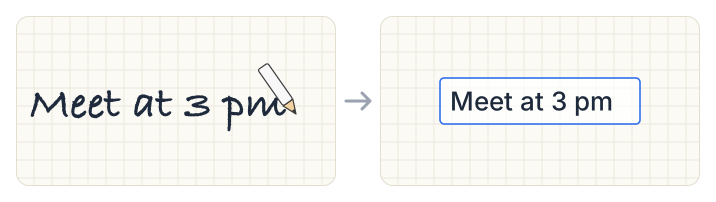
Keep writing to add more text to the same text box. If you don’t write anything, the empty text box is removed.
Add to an Existing Text Box
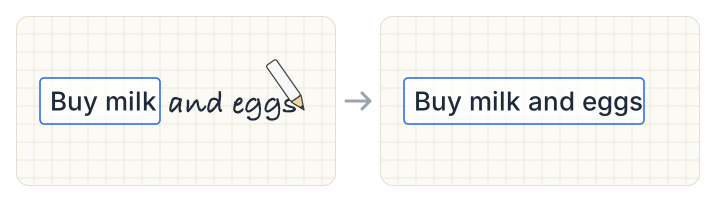
Write inside or right next to a text box. Your writing is added to that text box, instead of creating a new one.
Edit Text with Apple Pencil
While the Scribble tool is selected, you can edit text in a text box with these iPadOS Scribble gestures:
| To | Do this |
|---|---|
| Delete words | Scratch them out. |
| Select text | Circle it, or draw a line under it. |
| Insert text | Touch and hold where you want to insert, then write in the space that opens. |
| Join or separate characters | Draw a vertical line between them. |
Change the Font, Size, and Color
- With Scribble selected, tap Scribble in the toolbar again to open its settings.
- Choose a Font, a Font Size, and a Text Color.
The settings apply to new text boxes you create with Scribble. To change a text box you already made, select it and use the text formatting tools.
Use Your Finger
While the Scribble tool is selected, Apple Pencil writes and your finger works with the page:
- Tap a text box to select it, then drag it to move it.
- Touch and hold a blank area to show Paste.
Undo
Tap Undo to remove a text box you just created with Scribble, or to reverse text you added.
Tips
- Write clearly and pause. Scribble converts your writing after a short pause, so finish a word or phrase before you stop.
- Use a pen for drawings. Scribble is for text. To keep your handwriting as ink, use a pen. You can still convert handwriting later with the Lasso’s Convert to Text. See Lasso Tool.
- If nothing happens. Check that Scribble is turned on in the Settings app, and that you are writing with Apple Pencil, not your finger.