Shape Tool
Shape Tool
Draw a rough line, circle, or box, and UltraNotes turns it into a clean, precise shape. It’s great for diagrams, charts, mind maps, and geometry.
There are two ways to draw shapes:
- Shape tool: Every stroke you draw becomes a perfect shape as soon as you lift your pen. It also has styles such as dashed lines and fill color.
- Draw and Hold: Works with every pen. Draw a shape, then hold your pen still for a moment to turn it into a perfect shape. Strokes you don’t hold stay as normal handwriting.
Shapes You Can Draw
UltraNotes recognizes these shapes, drawn in one stroke:
| Shape | How to draw it |
|---|---|
| Line | A straight stroke. |
| Arrow | A line, then a “V” at one end, without lifting your pen. |
| Angle | Two straight lines that meet at a corner, like an “L” or a “V”. |
| Arc | A curved stroke, like part of a circle. |
| Circle | A round loop. |
| Ellipse | An oval loop. |
| Triangle | Three sides that close up. |
| Rectangle | Four sides that close up. |
| Polygon | Five or more sides that close up. |
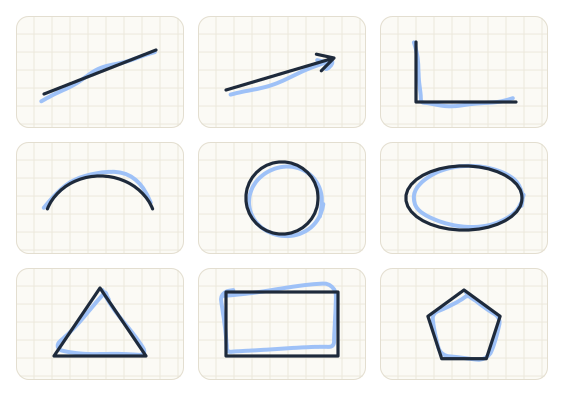
The finished shape keeps the size, position, and angle of what you drew. If UltraNotes can’t recognize a stroke as a shape, it stays as you drew it.
Use the Shape Tool
- Tap Shape Tool in the toolbar.
- Draw a shape in one stroke.
- Lift your pen. Your stroke is replaced with a perfect shape.
To change the color or thickness, choose one of the thickness buttons or color swatches in the toolbar, next to the tools.
Shape Tool Settings
With the Shape tool selected, tap Shape Tool in the toolbar again to open its settings:
- Show on Toolbar: Turn off to remove the Shape tool from the toolbar. To get it back, turn it on again in the app’s Stylus settings.
- Style: Choose Solid or Dashed outlines.
- Rounded Rectangle: Give rectangles rounded corners.
- Fill Color: Fill closed shapes, such as circles, triangles, and rectangles, with a light tint of the shape’s color.
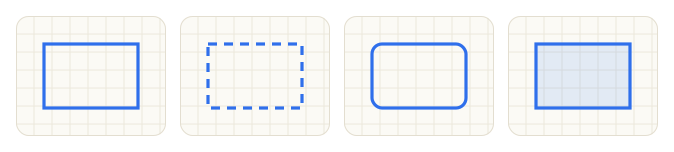
These settings apply only to the Shape tool. Shapes made with Draw and Hold always have a solid outline, square corners, and no fill.
Draw and Hold
Draw and Hold lets you make shapes without switching tools. It works with every pen and the highlighter.
- With any pen, draw a shape in one stroke.
- At the end of the stroke, keep your pen on the screen and hold it still for about a second.
- Your stroke turns into a perfect shape. Lift your pen.
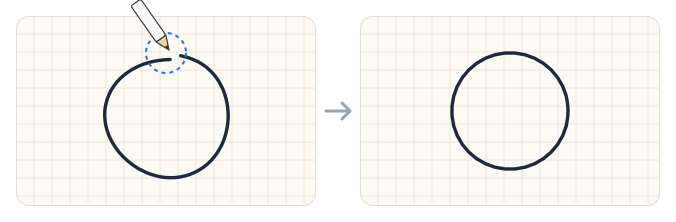
The shape uses the pen’s color and thickness. With Apple Pencil Pro, you feel a gentle tap when the shape is recognized.
With the highlighter, Draw and Hold is a quick way to make a perfectly straight highlight.
Turn Draw and Hold On or Off
Draw and Hold is on by default. If shapes appear when you don’t want them, such as when you pause while writing, you can turn it off.
- Tap the pen you are using in the toolbar to select it, then tap it again to open its settings.
- Turn Draw and Hold on or off.
The setting applies to all pens.
Undo a Shape
If a shape isn’t what you wanted, tap Undo.
Tips
- Draw in one stroke. Shapes are recognized from a single stroke. Lifting your pen in the middle starts a new stroke.
- Close your shapes. For circles, triangles, and rectangles, end the stroke near where you started.
- Use the Shape tool for many shapes. When you’re drawing a diagram with lots of shapes, the Shape tool is faster, because you don’t need to hold.
- Use Draw and Hold while writing. When you only need an occasional line or box among your notes, Draw and Hold saves switching tools.