
Lasso Tool
Lasso Tool
Use the Lasso to select content on a page, then move it, resize it, change its color, copy it, or turn handwriting into text. The Lasso can select handwriting, text boxes, images, and stickers together.
Select Content
- Tap Lasso in the toolbar.
- Draw a loop around the content you want to select.
- Lift your pen. The selection is shown with a dashed blue outline.
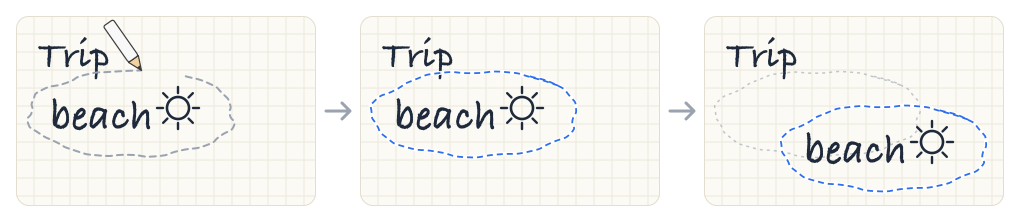
To clear the selection, tap anywhere outside it.
What Gets Selected
Anything that your loop surrounds or touches is selected. You don’t need to fit everything inside the loop:
- Handwriting. Each stroke your loop crosses is selected, even if most of it is outside the loop. In the example below, the loop crosses the “t” in “trip”, so the “t” is selected too.
- Text boxes, images, and stickers. An object is selected if the loop surrounds it or touches part of it.

If you select too much, tap outside the selection and draw a tighter loop.
The Lasso only selects content on the current layer. To select content on another layer, switch to that layer first. See Layers.
Move a Selection
Drag the selection to a new spot on the page.
Selection Menu
Tap the selection to show the menu:
| Action | What it does |
|---|---|
| Copy | Copies the selection so you can paste it on any page. |
| Cut | Copies the selection, then removes it from the page. |
| Resize | Shows a frame with handles so you can make the selection bigger or smaller. |
| Color | Changes the color of the selected handwriting. |
| Convert to Text | Turns the selected handwriting into a text box. |
| Screenshot | Makes an image of the selected area. |
| Delete | Removes the selection from the page. |
Resize and Convert to Text appear only when the selection contains handwriting and nothing else. Color appears when the selection contains handwriting.
Resize Handwriting
- Select some handwriting and tap Resize in the menu.
- Drag any corner handle. The handwriting keeps its proportions as it grows or shrinks.
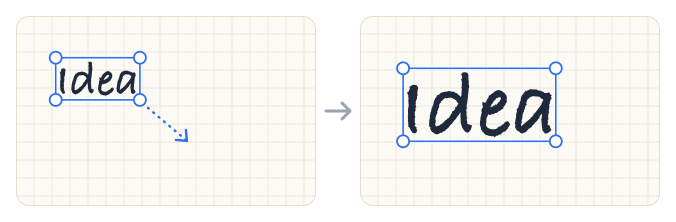
Change the Color
Select some handwriting, tap Color, then pick a new color. Only the handwriting in the selection changes color. Text boxes, images, and stickers keep their look.
Convert Handwriting to Text
Select some handwriting and tap Convert to Text. UltraNotes shows Converting to text…, then replaces the handwriting with a text box.
If no text is recognized, your handwriting is kept as it is.
Take a Screenshot
Select an area and tap Screenshot. A preview of the selected area opens, where you can:
- Tap Copy to copy the image, then paste it into a note or another app.
- Tap the share button to save or send the image.
- Drag the image into a note.
The screenshot includes everything you can see in that area, such as the PDF page and content on other visible layers.
Paste
With the Lasso selected, touch and hold an empty spot on the page until Paste appears, then tap Paste. The content is pasted where you touched.
You can paste content you copied with the Lasso, copied images, and copied objects.
Undo
Tap Undo to reverse a move, resize, color change, conversion to text, paste, cut, or delete.
Tips
- Tap does not select. A tap, or touching and holding without moving, does not start a selection. Draw a loop instead.
- Apple Pencil only. If you set UltraNotes to draw with Apple Pencil only, draw the loop with Apple Pencil. Your finger scrolls the page.