Scribble to Erase
Scribble to Erase
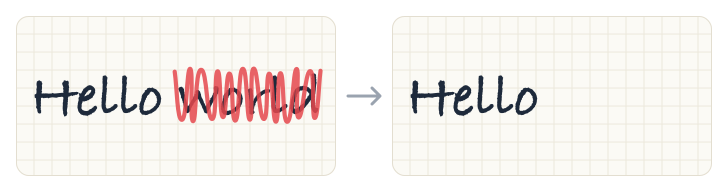
Made a mistake? With Scribble to Erase, you can remove handwriting without switching tools. Just scribble over the words you want to delete, the same way you would cross them out on paper, and lift your pen. The handwriting and your scribble disappear together.
How to Erase
- Select a writing pen: Ball Pen, Pencil, Fountain Pen, or Monoline.
- Without lifting your pen, scribble back and forth over the handwriting you want to remove. Make at least six quick passes, like a zigzag.
- Lift your pen. The handwriting under your scribble is erased.
The Best Scribble Path
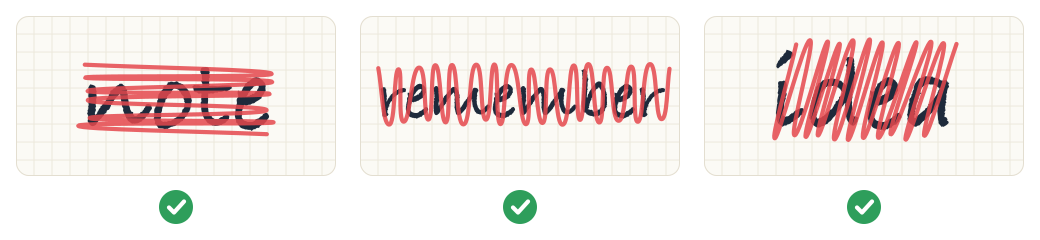
Use a dense zigzag that covers every stroke you want to remove. You can scribble in any direction:
- Side to side, moving down over a short word.
- Up and down, moving across a longer word.
- At an angle, as long as the zigzag stays on the ink.
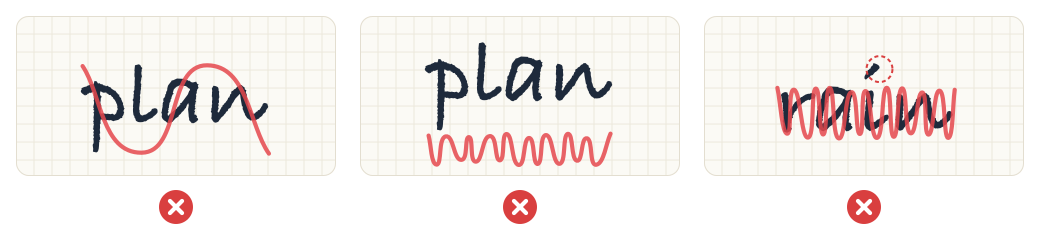
Watch out for these common mistakes:
- Too few passes. One or two strokes look like a check mark or a cross-out, not a scribble. Nothing is erased, and the scribble stays on the page as ink. Make at least six passes.
- Off the ink. A scribble that sits beside or below the word, and only touches its edge, is treated as normal writing.
- A mark left outside. Separate marks, such as the dot on an “i” or the cross of a “t”, are only erased if your scribble covers them too. If a mark is left behind, scribble over it again.
If a scribble stays on the page as ink, tap Undo to remove it.
Tips for Best Results
- Keep it to one stroke. The scribble must be a single, continuous stroke. If you lift your pen in the middle, it is treated as normal writing.
- Stay on top of the ink. Keep your scribble over the handwriting from start to finish.
- Cover what you want to remove. Only strokes that your scribble covers well are erased. Nearby words, and long lines that extend far beyond your scribble, are left alone.
- Scribble over existing ink only. Scribbling on an empty area of the page draws normally, so you can still shade or fill shapes.
Undo an Erase
If you erased something by mistake, tap Undo. The handwriting comes back, and the scribble does not.
Which Tools Support It
Scribble to Erase works with the Ball Pen, Pencil, Fountain Pen, and Monoline. It does not work with the Highlighter, Crayon, Water Color, or Shape Tool, or while the Ruler is showing.
Strokes that you have already partly erased with the eraser are not removed by a scribble. Use the eraser for those.
Turn Scribble to Erase On or Off
Scribble to Erase is on by default. If you often draw or shade with quick back-and-forth strokes, you may want to turn it off.
- Tap the pen you are using in the toolbar to select it, then tap it again to open its settings.
- Turn Scribble to Erase on or off.
The setting applies to all writing pens.