Skip to content
OwlfilesAccess your files anywhere
HomePricingBlogUser guide
English
EnglishDeutsch日本語中文
Menu
HomePricingBlogUser guide
EnglishDeutsch日本語中文
User Guide/iOS/Manage connections
In this guideFile managementFile transferDocument editingAirPlay to Apple TVSet up a connectionManage connectionsSettings for macOSSettings for Windows 11Settings for Windows 10Settings for Windows 7Settings for Windows XPSettings for Time CapsuleBuilt-in FTP serverUSB file transferNearby DropSync filesBack up photosExternal locationsSign in with a QR codeIntegrate with other apps

Manage connections

Reorder connections

  1. Open the Connections tab.
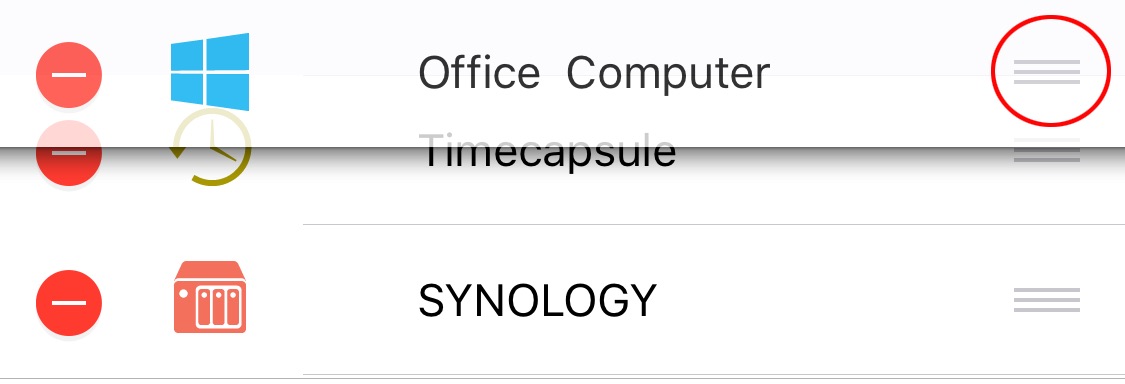
  2. Tap Edit.
  3. Drag the connections into the order you want.
  4. Tap Done.

Reordering connections in Owlfiles

Duplicate, edit, or delete a connection

Touch and hold a connection, then choose an action from the context menu.
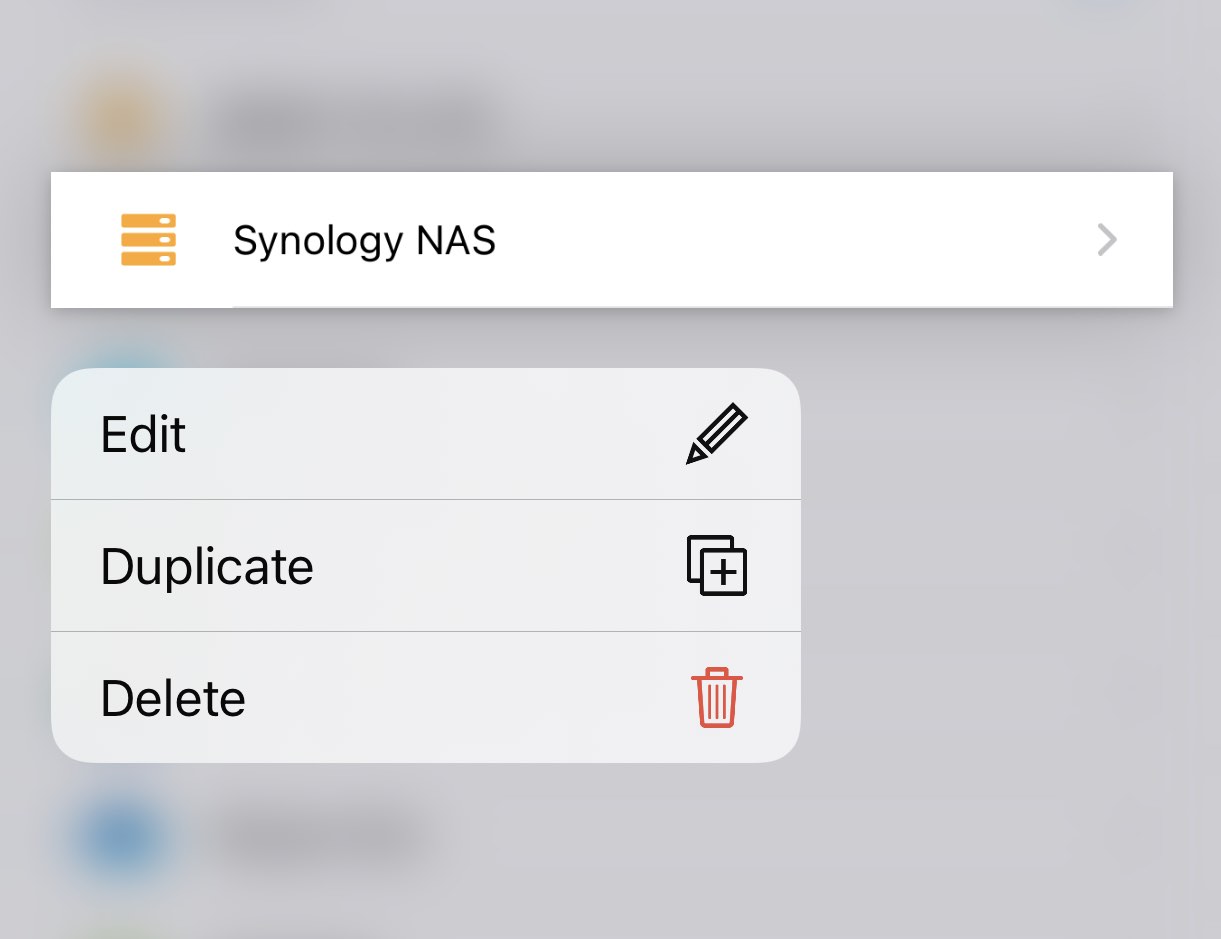
Connection actions in the context menu

Previous← Set up a connectionNextSettings for macOS →
Contact usPrivacy PolicyTerms of Use
Copyright © Skyjos Ltd. All rights reserved.上海欧丸信息科技有限公司版权所有 保留所有权利沪ICP备17046437号-1沪公网安备 31011502008831