Settings for macOS
Turn on file sharing
- Open System Settings or System Preferences.
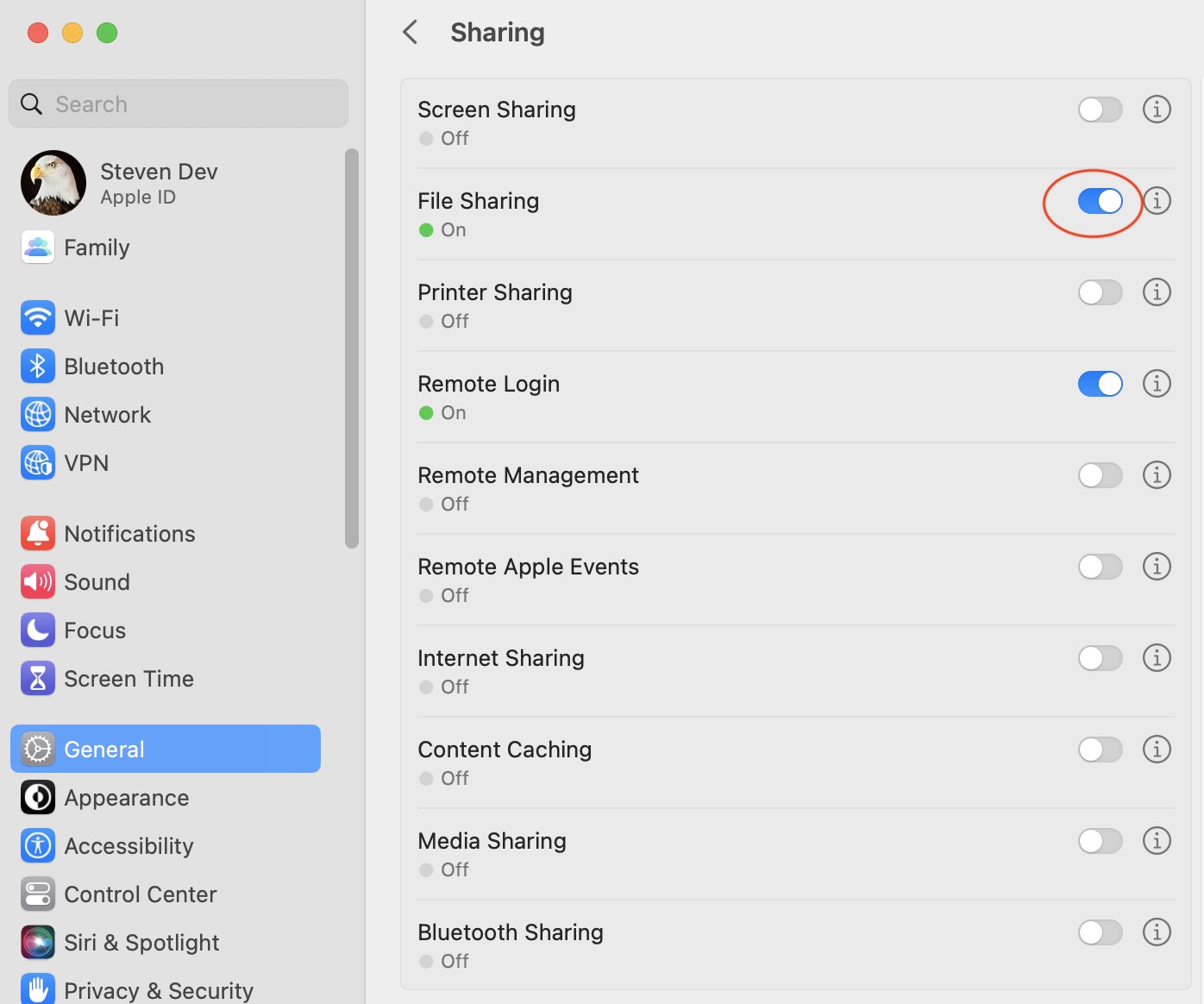
- Go to General > Sharing.
- Turn on File Sharing.
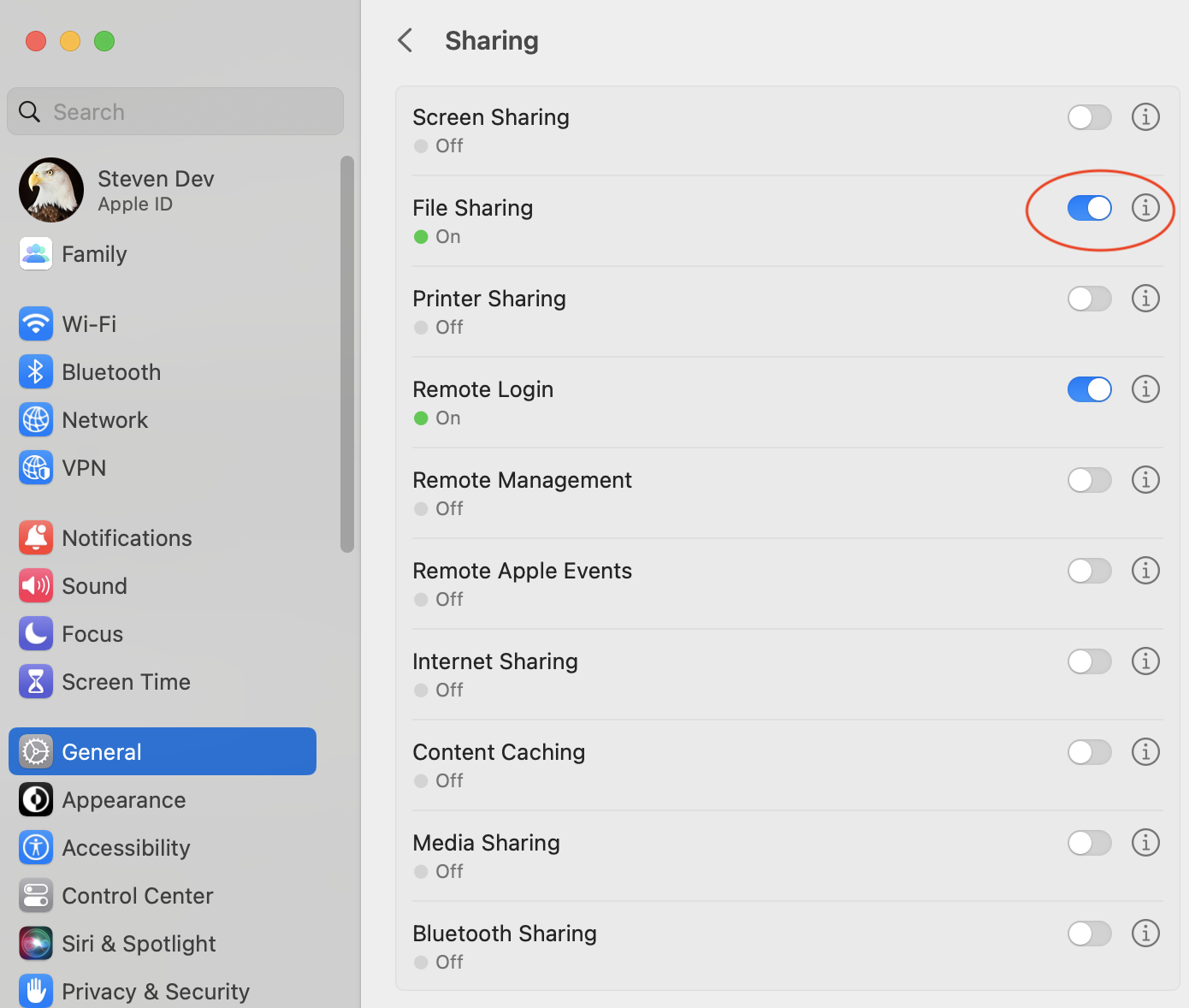
- Click the information button next to File Sharing.
Share a folder
- Under Shared Folders, click the add button and select the folder you want to share.
- Set the required permissions for your user account.
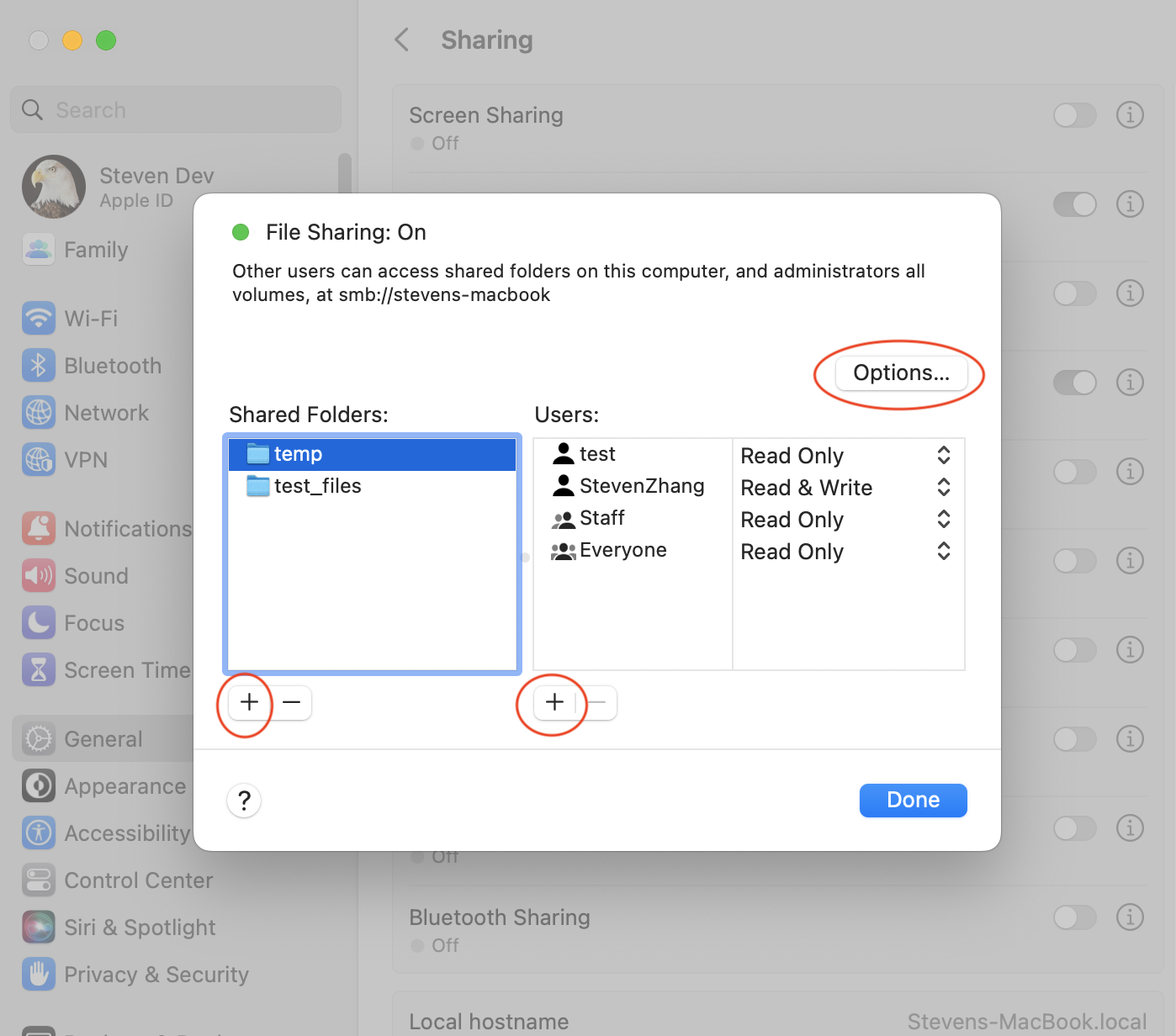
- Click Options.
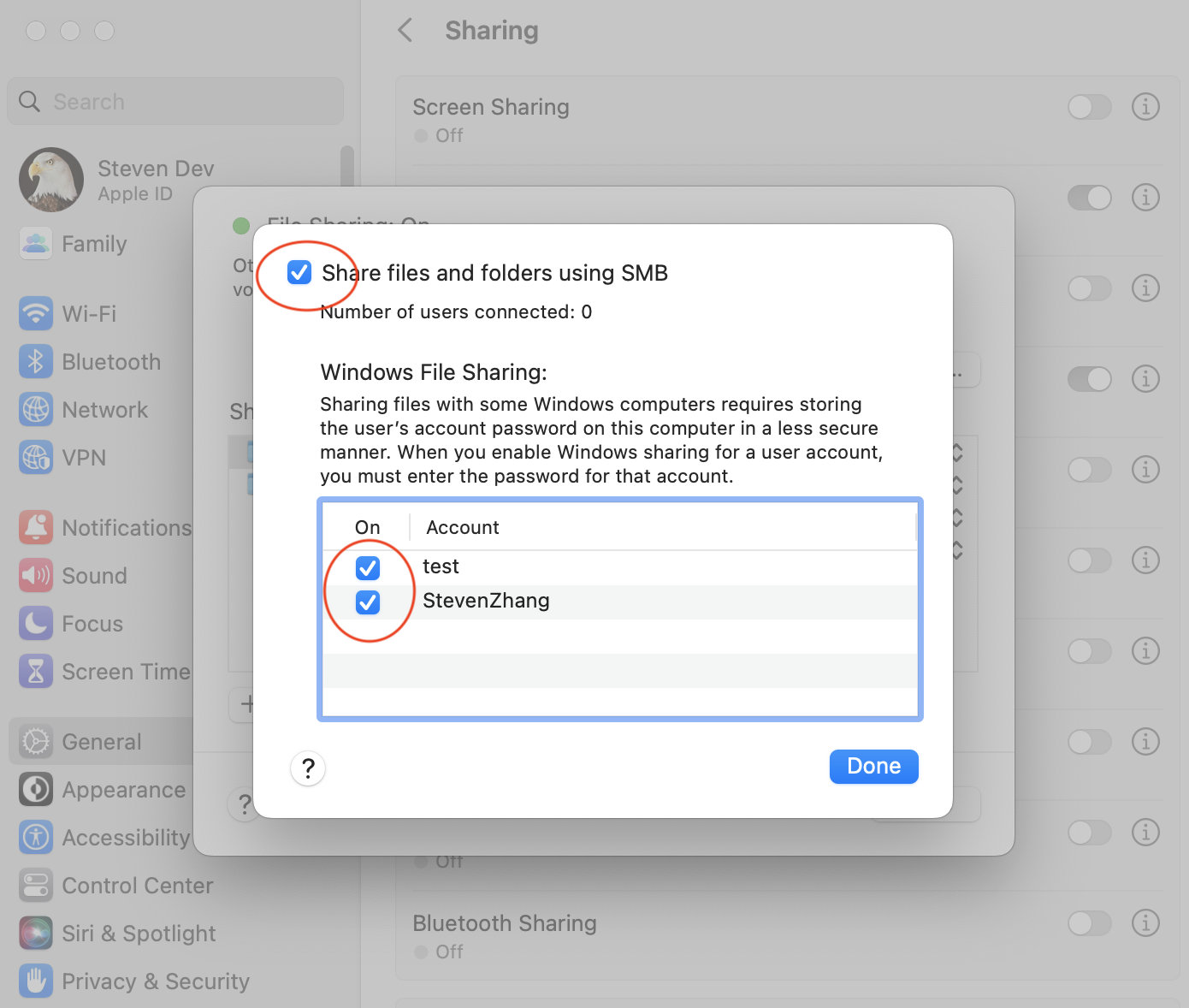
- Turn on Share files and folders using SMB, then enable your user account.
If your Apple Account password does not work
If your Mac user account uses an Apple Account password, the account may appear disabled in the file-sharing options and cannot be used to connect from Owlfiles.
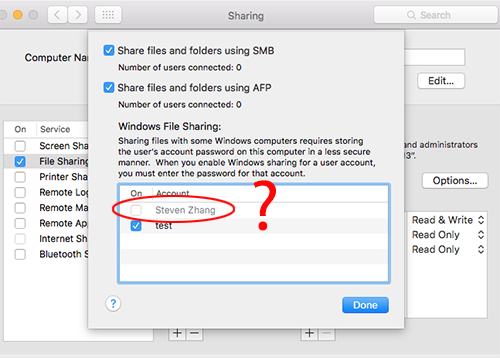
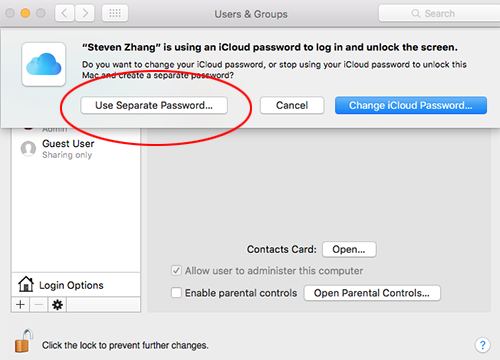
Create a separate password for the Mac user account:
- Open System Settings or System Preferences.
- Go to Users & Groups.
- Change the account password and choose the option to use a separate password.
Troubleshooting
If Owlfiles reports an unknown host or the connection times out:
- Connect using the Mac’s IP address instead of its computer name.
- Turn File Sharing off, then turn it on again.