
Back up photos
Create a photo backup
Back up photos from your Android device to a computer, NAS, or cloud storage.
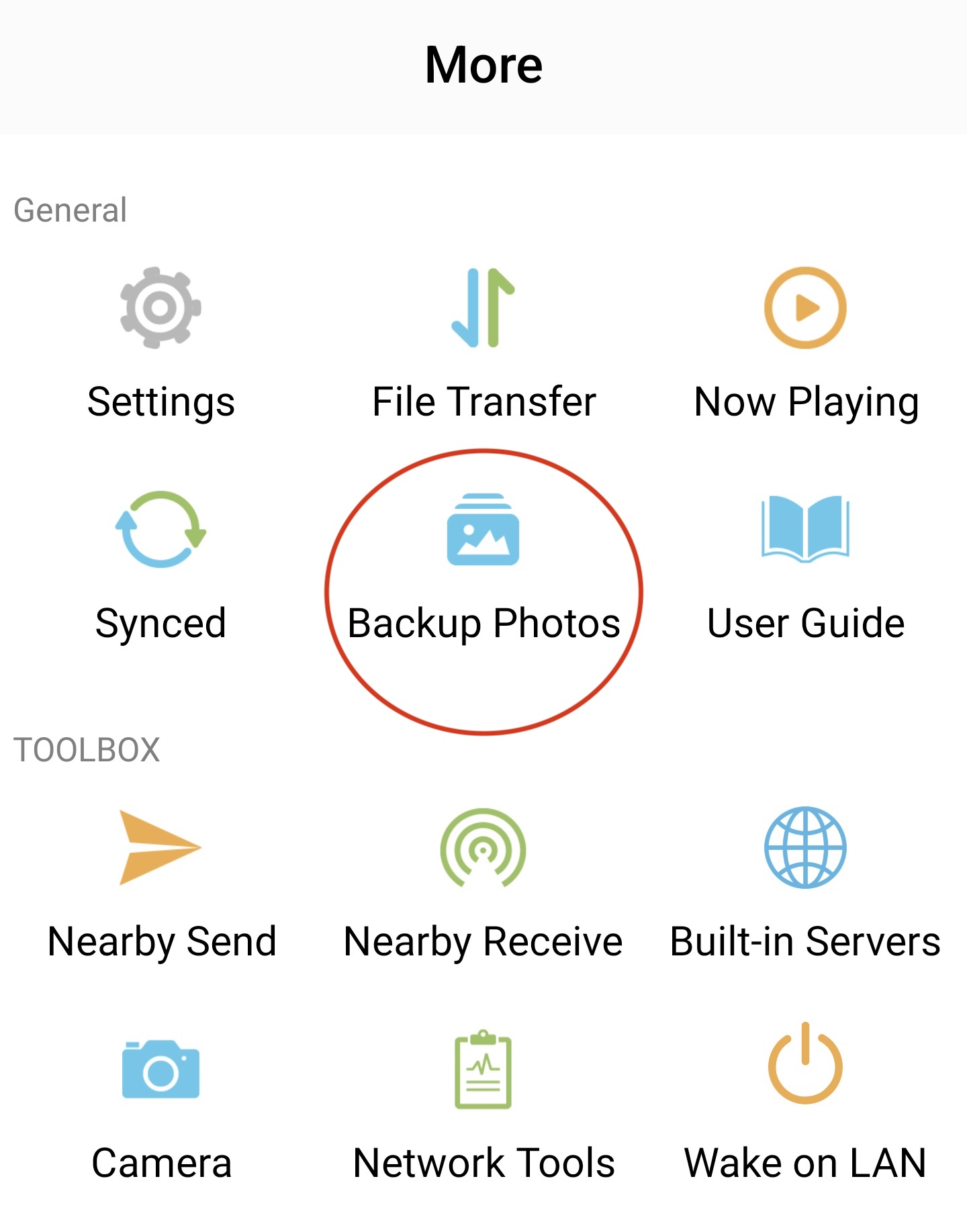
- Open the More tab and tap Backup Album.
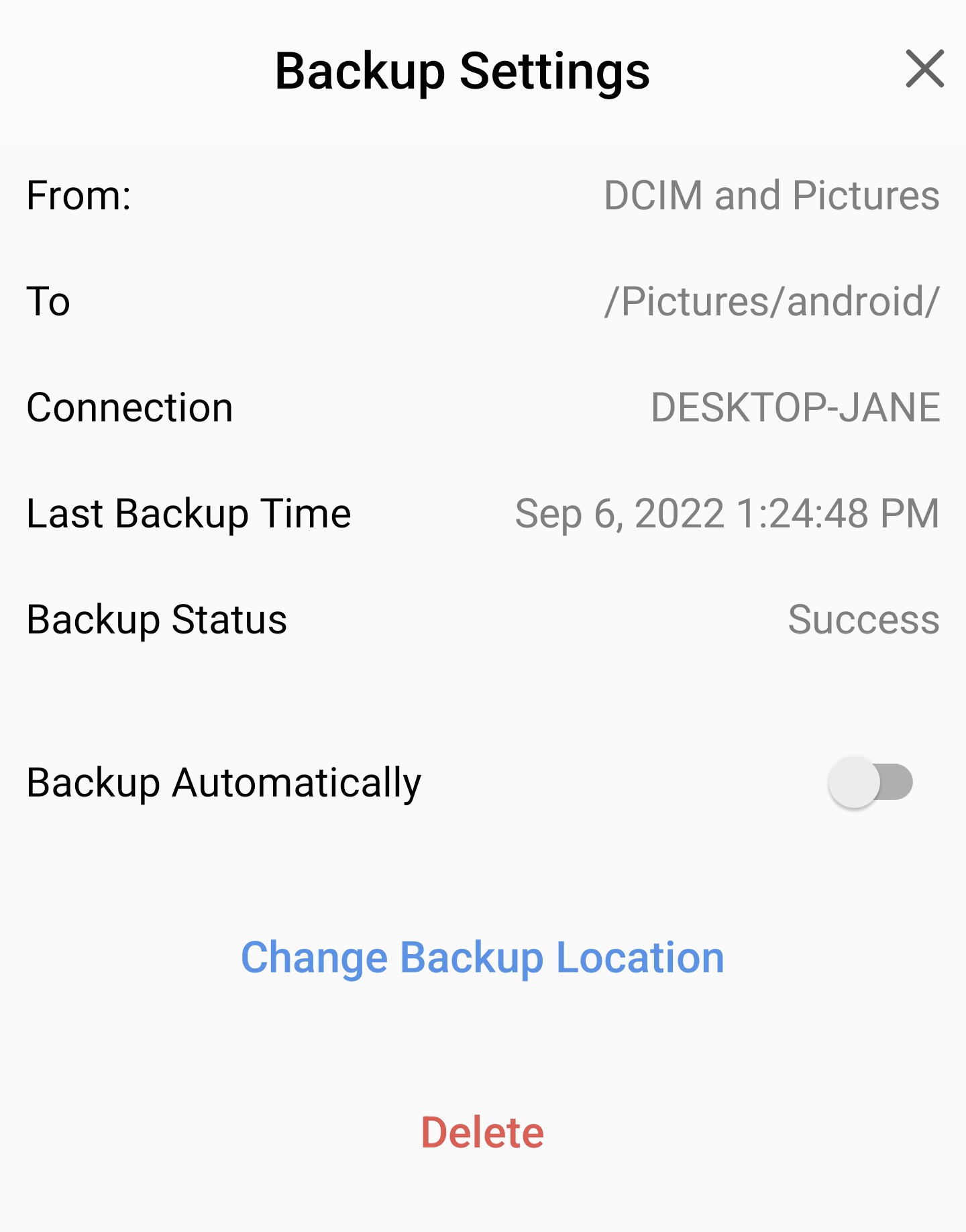
- Select the backup location in the backup settings.
- To run the backup when the app starts, turn on Backup Automatically.
- Tap Start Backup.
Run a photo backup
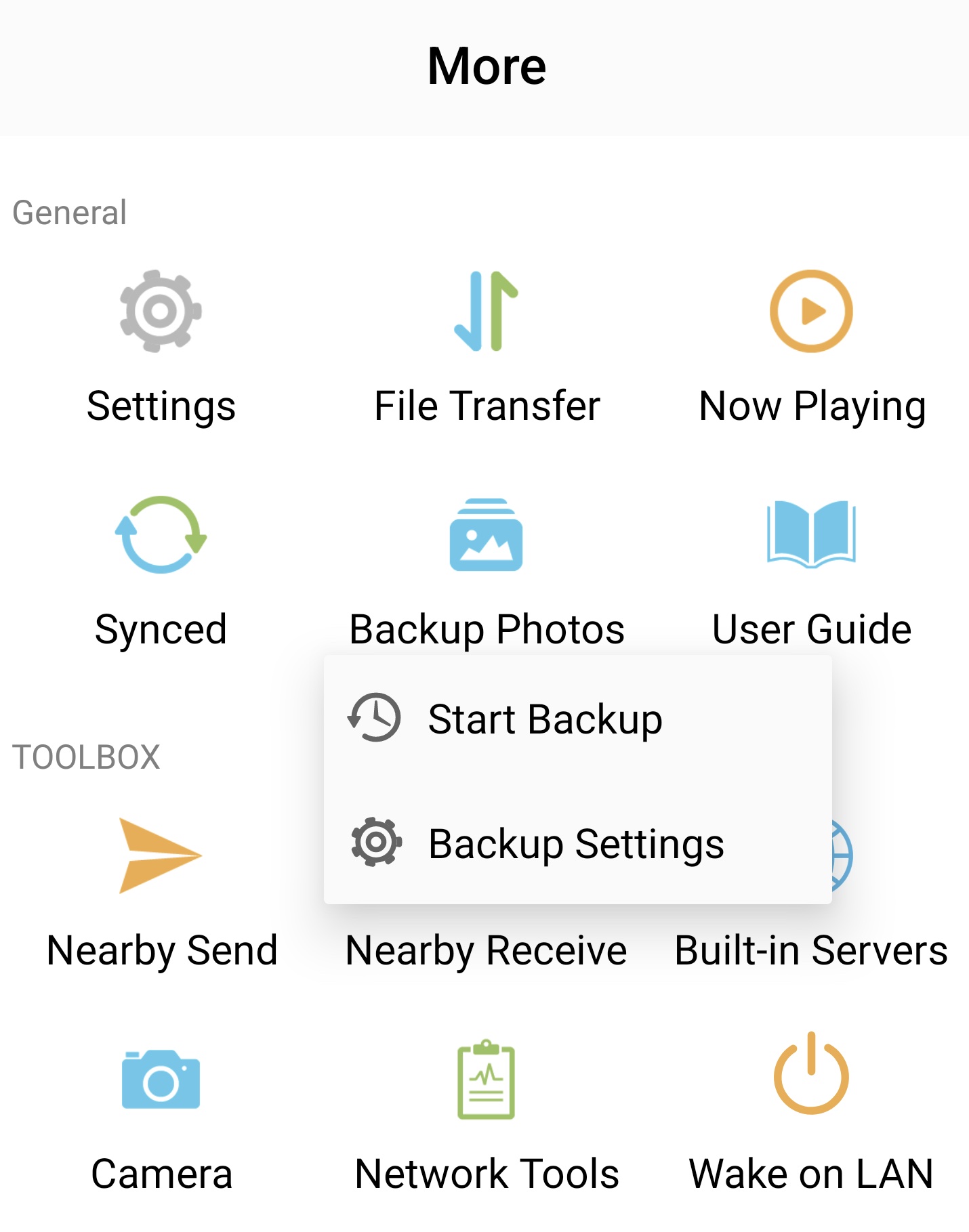
- In the More tab, touch and hold Backup Album.
- Tap Backup Album in the context menu.
Delete a photo backup
- In the More tab, touch and hold Backup Album.
- Tap Backup Settings in the context menu.
- Tap Delete.
Deleting the backup configuration does not delete photos or videos from your Android device or the remote location.